
Looking for a totally free, unlimited AI music generator that lets you actually use the music for anything you want? You’re in the right place! After lots of questions from you guys about free AI music tools, I finally stumbled upon Sonauto AI. Not only is it truly free and unlimited, but it also lets you use whatever you make commercially—no hidden credits, no weird restrictions.
And get this: the audio quality is even better than what you get with Suno or UDIO. It’s packed with features and crazy easy to use. I’m going to walk you through everything—how to generate full songs, tweak lyrics, try different artist styles, download stems, edit after the song is made, and more. Ready to jump in? Let’s get started!
Table of Contents
Why Sonauto AI Stands Out
First off—what makes Sonauto AI so special? Here’s what you get:
- Free and unlimited music generation
- No annoying credit system
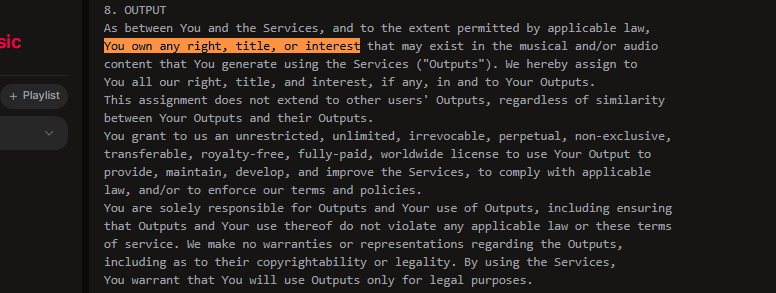
- Full commercial rights on everything you generate
- Generates music in better audio quality than Suno or UDIO
- Artist-style prompts actually work
- Download stems, full songs or even lyric music videos
- Edit finished songs with inpainting (change lyrics after it’s made!)
- No pricing page, no upsells—just music
“Sonauto definitely has better audio quality and clean vocals, while Suno had low quality instrumentals.”
If you’re tired of hitting credit limits or bouncing off paywalls with other tools, you’ll love this.
How to Get Started: Create Your Free Account
Let’s get hands-on. Here’s how you can make your first track in just a few minutes.
- Visit sonauto.ai
- Sign up for a free account (or log in if you already have one)
That’s literally all it takes. Once you’re logged in, you’re ready to create music right away!
Using Simple Mode (with Real Artist Styles!)
One of Sonauto AI’s coolest features? You can ask it to create music in the style of actual artists—and it works!
Step-by-Step: Generating Your First Song
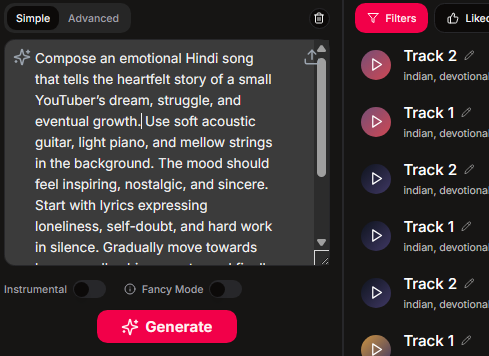
- From the dashboard, pick ‘Simple Mode’
- In the prompt, type a description of the song you want, just like you’d describe it to a songwriter:
- Example: “A heartfelt pop anthem about falling for someone at the wrong time in the emotional style of Taylor Swift.”
- Submit the prompt
What About Other AI Music Tools?
- Suno AI gives an error if you use an artist’s name.
- UDIO AI replaces artist names with generic tags.
- Sonauto AI? It just works. You get music authentically influenced by the artist you named.
“That was actually pretty good.”
Artist Impersonation Examples
Let’s try a few others—this is wild.
- Grunge-rock style of Eddie Vedder: The vocals and vibe are spot on. The AI really nails that dark, deep grunge feel.
- Classic crooner style of Frank Sinatra: Seriously, it sounds like Frank Sinatra singing your new lyrics.
“Dude, that sounded exactly like him. Pretty cool, right?”
Note: If you don’t want vocals, see the next section for Instrumental Mode.
Instrumental and Fancy Mode: More Control Over Your Music
Want instrumentals only? Easy.
- Enter your song prompt as usual.
- Toggle on ‘Instrumental Mode’
- You’ll get a track with no vocals. Great for podcasts, YouTube backgrounds, presentations, or karaoke.
Fancy Mode: Boost Your Results
- “Fancy Mode” makes the AI spend more time and effort on your song.
- Quality improves, though generation takes a little longer.
Just enable the ‘Fancy Mode’ switch before submitting your prompt.
“You can also experiment by turning on the fancy mode. It will take longer to generate, but it will give you better results.”
Advanced Mode: Custom Lyrics and Genre Tags
What if you’ve already got your own lyrics? Or you want total control over the genre and style?
Advanced Mode’s got you.
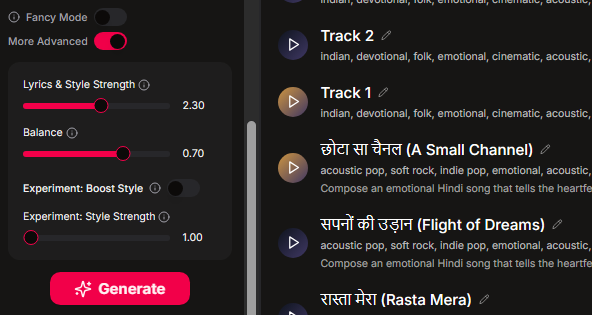
Step 1: Enable Advanced Mode
- Switch to ‘Advanced Mode’ after logging in.
Step 2: Paste Your Custom Lyrics
- Enable “custom lyrics”
- Paste your lyrics in the provided box
Step 3: Set the Sound/Genre
Describe the style you want in the Sound section:
Alternative rock, pop rock, ColdplayAdd as many relevant tags or style descriptions as you like.
Step 4: Generate!
Hit “Generate” and wait for the magic to happen.
Caution: The AI Might Impersonate Artists Too Well
“This AI is sometimes actually singing in the voice of the artist. That’s scary.”
Sometimes Sonauto AI gets really close to artist vocals—even if you don’t want it to! If you want to avoid that, keep artist names out of the prompt.
Downloading and Sharing Your Song
Once your song is done, you’ve got a ton of options:
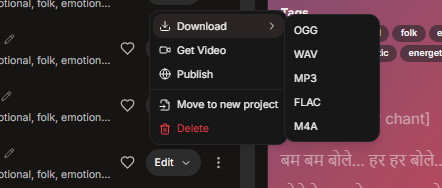
- Download audio in multiple formats (MP3, WAV, FLAC, etc.)
- Download a lyric video with animated text
- Download instrumental or vocal stems (more on this below)
For any content creator, these extras are super handy.
Comparing Sonauto AI vs. Suno AI: Audio Quality Face-Off
Let’s talk audio quality. How does Sonauto compare to other tools like Suno and UDIO?
The Test
- Generated a dance pop song with both platforms
- Compared instrumental clarity, vocal quality, and mixing
The Results
- Sonauto AI: Cleaner vocals, crisp intrumentals, overall fuller sound
- Suno AI: Vocals often mixed deep and hard to hear, instruments sound lo-fi
“Sonauto definitely has better audio quality and clean vocals, while Suno had low quality instrumentals.”
If sound quality matters (and it should!), Sonauto pulls way ahead.
Song Extension Walkthrough: Making Full-Length Tracks
By default, Sonauto AI generates around 1 minute 35 seconds for each song “shot”—similar to UDIO AI.
But what if you want a full-length song?
Easy: extend your song with new lyrics or sections.
How to Extend Your Song
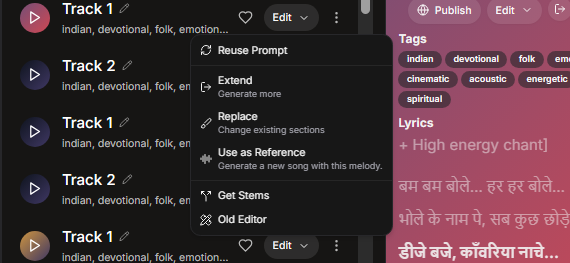
- Click ‘Edit’ on your song
- Choose ‘Extend’
- Decide if you want to add lyrics:
- Before a current section (intro or new verse)
- After a current section (outro or extra chorus)
- In the middle (bridge, alternate verse, etc.)
“I always start with the chorus, as the chorus is the heart of the song.”
Example: Adding an Intro
- Paste your intro lyrics and maybe a short new verse into the “New Lyrics” box
- Click “Generate” to add the new section
Sonauto AI will give you a choice of different extensions to pick from, so you can choose what fits best.
“Now the song is more than two minutes long with the intro added. Similarly, you can add more sections to finish the song.”
Repeat as needed to build a full, customized song structure.
Downloading Stems (for Free!)
One of the best features: download multitrack stems at no cost. Suno charges 50 credits for this, but with Sonauto:
- Click “Edit”
- Select “Get Stems”
- Download the vocals, drums, bass, guitar, or any other stem you need—totally free
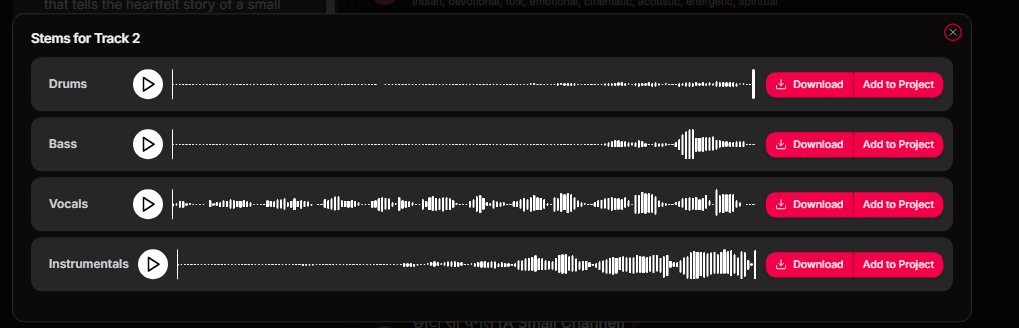
Producers, remixers, and collaborators will love the flexibility!
AI Inpainting: Edit Lyrics in Existing Songs!
Probably the most jaw-dropping tool Sonauto offers is AI inpainting—basically, this lets you edit any part of a finished song by changing the lyrics (and even the vocals) after it’s produced.
How Inpainting Works
Let’s say Suno made you a song, but you hate four lines in verse one. Here’s how you can fix it:
- Download the song audio
- Upload it into Sonauto AI
- Add it as a new project
- The track will show up on the left panel
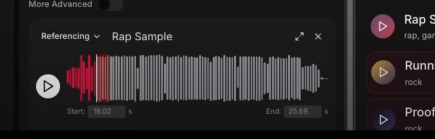
- Select the section to edit
- Highlight the phrase by clicking and dragging
- or enter the exact start/end timestamps
Don’t enable “crop to selection,” or you’ll only get the edited section, not the full song.
- Paste the new lyrics you want for that bit
- Set the genre again (e.g. “rap”)
- Click Generate
“Now, the AI creates a new song with the updated lyrics—everything else stays the same!”
Inpainting Works in Any Language
- Tried in Spanish? It still works great!
Cost and Usability
- Suno charges 10 credits even to change a single word
- Sonauto does it for free—no credits, no restrictions
- Suno’s new editor is buggy and slow
- Sonauto is smooth and reliable
“Sonauto AI is totally free and unlimited. There is no credit system. They don’t even have a pricing page.”
Commercial Rights & Free Forever?
This is where Sonauto pulls ahead of most AI music platforms.
“They allow commercial usage even if you use it for free.”
You actually own what you make with Sonauto AI. You can:
- Use the tracks in your YouTube videos, podcasts, ads, or any project
- Sell your tracks on platforms like Bandcamp, iTunes, etc.
- Use them as background music for streaming, games, or monetized projects
Just check their terms page for the latest info, but as of this post, it’s all green lights.
Absolutely no credit charges, no watermarking, and no restrictions.
Final Thoughts: Should You Switch to Sonauto AI?
Let’s recap all the cool features:
Sonauto AI lets you:
- Generate unlimited, high-quality AI songs for free
- Use artist-style prompts and get real, authentic results
- Add or edit lyrics (before or after generation)
- Download full songs, lyric videos, instrumentals, or all the stems. All for $0.
- Inpaint edits into any finished song (even those made elsewhere)
- Never worry about running out of credits or hitting paywalls
- Use everything for commercial projects without legal stress
If you’ve been frustrated with Suno or UDIO limits, or you just want a true free AI songwriting companion, Sonauto AI is a game changer.
“What are you waiting for? Go check out Sunato AI and let me know if you like it.”
FAQ
Is Sonauto AI really free?
Yes! No payment, no credit system, not even a pricing page as of this writing.
Can I use the songs for commercial purposes?
Absolutely. Their terms allow commercial use even if you didn’t pay for anything.
Can I generate music in the style of real artists?
Yes! Unlike most competitors, Sonauto actually lets you reference real artists in your prompt.
What about lyrics? Can I write/replace them myself?
Yes, you can type your own lyrics, or use the AI’s default ones, or edit any lines after the initial song is made.
How long are the songs?
Each automatic generation is about 1:35 but you can keep extending with new sections to make songs as long as you want.
Can I get the stems for free?
You can download all the stems (vocals, instruments, etc.) for any song made with Sonauto, at no cost.
Does it support other languages?
Yes! Inpainting and lyric generation work in Spanish and other languages too.
Do I have to worry about copyright or legal issues?
As long as you follow the terms on their site, you’re good for both personal and commercial projects.
Share & Subscribe
If this walkthrough was helpful, be sure to share it with your friends who make music, run podcasts, YouTube, or just love playing with AI tools. Drop a comment if you discover new features—or wild song generations!
Subscribe for more cool AI music tips and tricks, and I’ll see you in the next post!
“Like the video and share it with your friends who might be interested in free AI music.
Subscribe to the channel for more cool AI stuff. I’ll see you in the next video. Goodbye.”
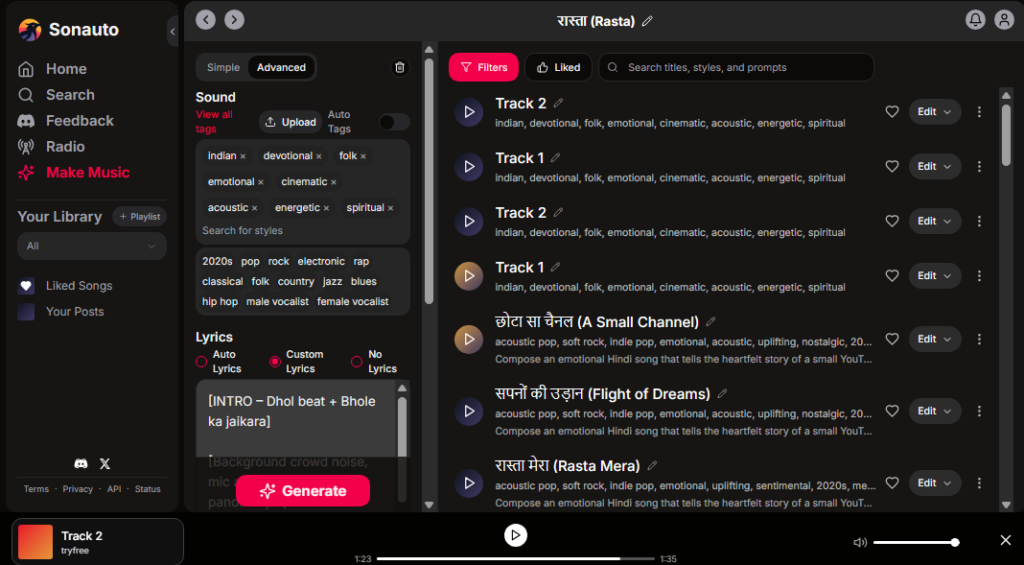
Visual Guide: Sonauto AI’s Interface and Features
Here’s what to expect visually inside the platform:
1. Main Dashboard
2. Simple Mode Prompt Window
3. Advanced Mode – Paste Lyrics and Set Genre
4. Artist Style Results (e.g. Taylor Swift prompt)
5. Download Options (Audio, Video, Stems)
6. Inpainting/Edit Lyric Interface
7. Commercial Use Terms Snapshot
Quick Links
Happy songwriting! If you create something amazing, let us know in the comments!